スタジオアニメーションの作り方 メモ用初心者用です(^^♪
3つあります
1
スタジオのデフォルテのアニメを使う
メリット 簡単にできます 位置合わせだけですむ
デメリット 同じ動きしかできません
ポーズをIK FKで固定するとほとんど動きません 動きが不自然になる
2
ギミックを使う
メリット 動きのループしたきれいなアニメーションができます
3
timeline VNGE Clip maneger+Nodes Constraints+gimmick を使う
こちらは難易度は高いのがデメリットですが 本格的なオリジナルアニメーションができます。
やり方 まず バニラのポーズや アニメから 基本になるポーズやアニメーションを選びます
まず キャラの IK または FK が有効でなければいけませんので
スタジオのポーズや アニメを読み込んだら anime – キネマ から アニメ位置参照を押します
そのあと IKを有効(緑)にします。
ワークスペースにあるフォルダをクリックして anime から適当な名前をつけます
今回はおしりに 使うのでIK HIPにします。
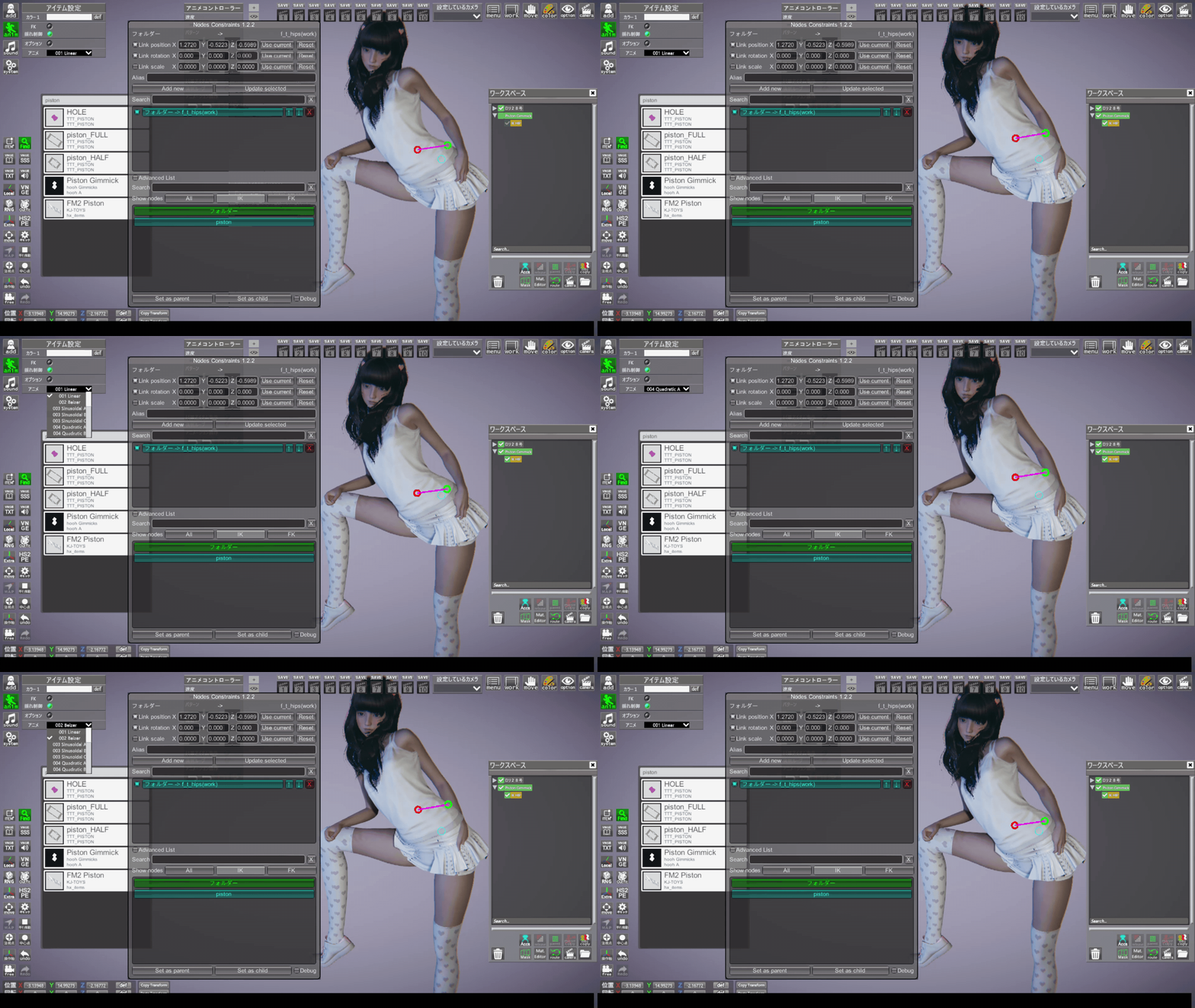
ctrl+N Nodes Constraintsで フォルダを親にします フォルダを Advancelistから Set as pearent
次にキャラを選択して IKーf_t_hips(work)を選択で Set as child 子にします
赤と緑の円形の位置をあわせて Use curentをクリック
上の Link position Link rotation にチエックで Add New
これで フォルダ IK HIPで HIPが IK操作でうごかせます
これにギミックでループさせるアニメーションもできます
まずfind 検索で pistonで piston gimmickをつかいます。
piston gimmickを フォルダIK HIPにペアレントさせるだけです
フォルダ IK hipを選択 ctrlを押しながらpiston gimmckをクリックしてワークスペースのpearentをクリック
メリットは IK RIGを増やせばバニラのデフォルトアニメのクオリティーでポーズが自由に変えれうごかせます
これでピストンの動きにあわせて IK HIPが動き キャラのおしりが動きます
piston gimmckは anime-オプションで非表示にしときます
追加
知っておきたいスタジオの基本操作
キーボード 操作のショートカット
Modの設定 管理 F1
カメラの操作 基本 パース変更 れ け む
ツイスト回転(シーン全体の角度) る め ろ
いろんなポーズを表示する G キー Gravure
一人称視点 ワークスペースでキャラ選択して英数字の O キー
(キャラ視点なのでHシーンに効果があがります)
キャラクターの上下 - PageUp Page Down
キャラクターの表示 ワークスペースでオブジェクトを選択して「F」を押すと対象オブジェクト中心の視点に切り替わります。
キャラクターのズーム - home End か ↑ ↓
キャラクターの回転 - 注視点をクリック表示して マウス 左右同時クリック状態でキャラを
注視点にあわせる 注視点を軸にキャラクターを回転できる
追加:
HS2PEでのポーズでの使い方 初心者用です(^^♪
キャラをaddで読み込む
スタジオの anime-キネマ-IK で機能を有効 (緑)にする
キャラを選択状態で HS2PE を起動 Hキー
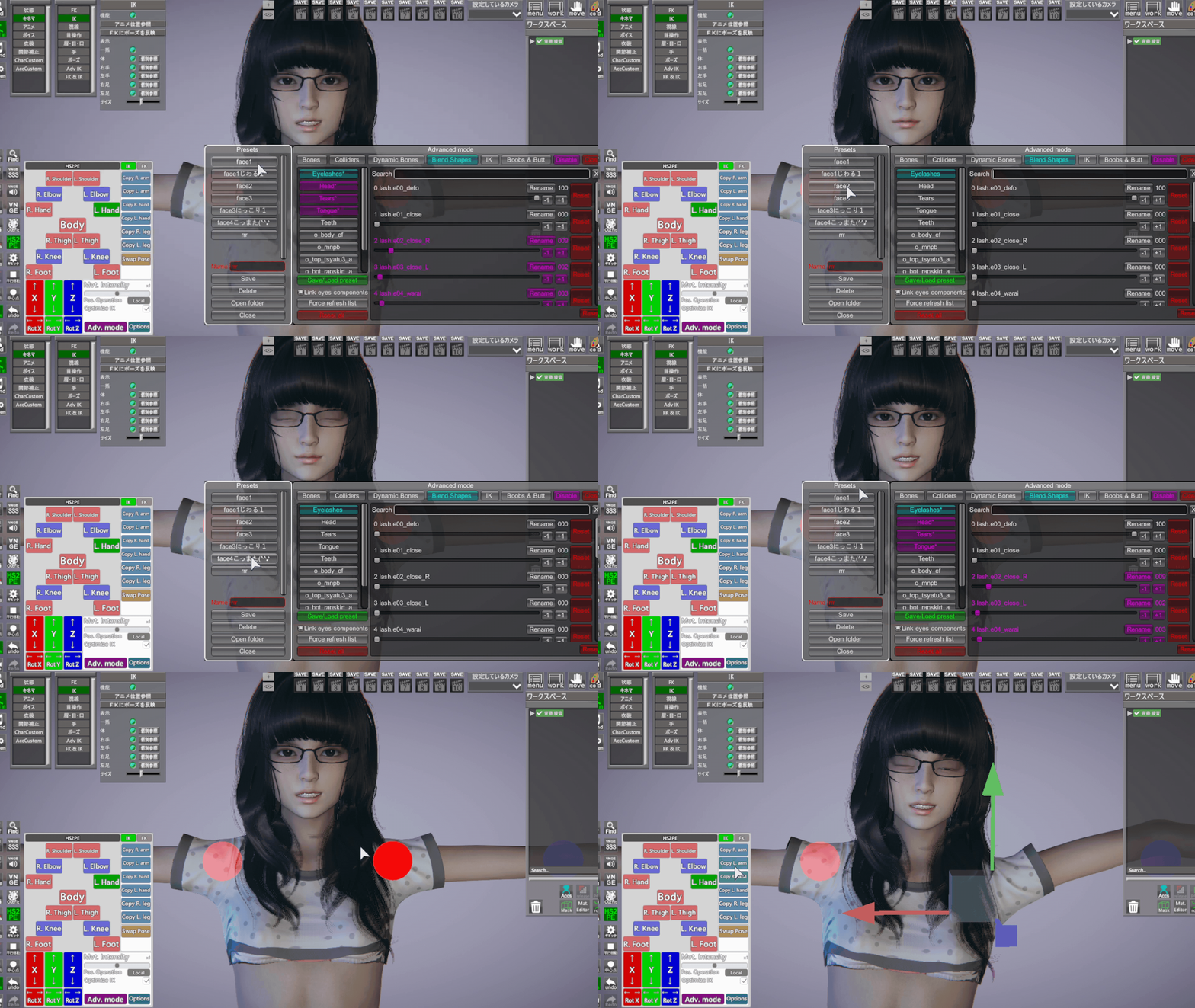
赤 白 青の 丸いポイントが IKポイントです おおまな位置は 操作軸で動かします
*HS2PE のメリット
1 IKポイントを動かす↑← → 回転ができますので 首以外FK操作ができるので
↓
ほぼIKでポーズがつくれます
2 左右対称のポーズ
やり方
スタジオの操作軸で 右手のIKを選択して Copy L arm をクリックすると 右手のポーズが
そのまま左にコピーできます
3 表情を変える
Adv. mode をクリック Blend Shapesを選択(青)
ほとんど Eyelashes と Head の パラメータ を 適当に選び調整します
ヒント
Head 選択 Searchで opで口の閉開パラメータがでます
おわったら Save Load preset で Nameを決めて SAVE
追加
* VNGE 37 SSSで音声ファイルとリップシンクさせる方法
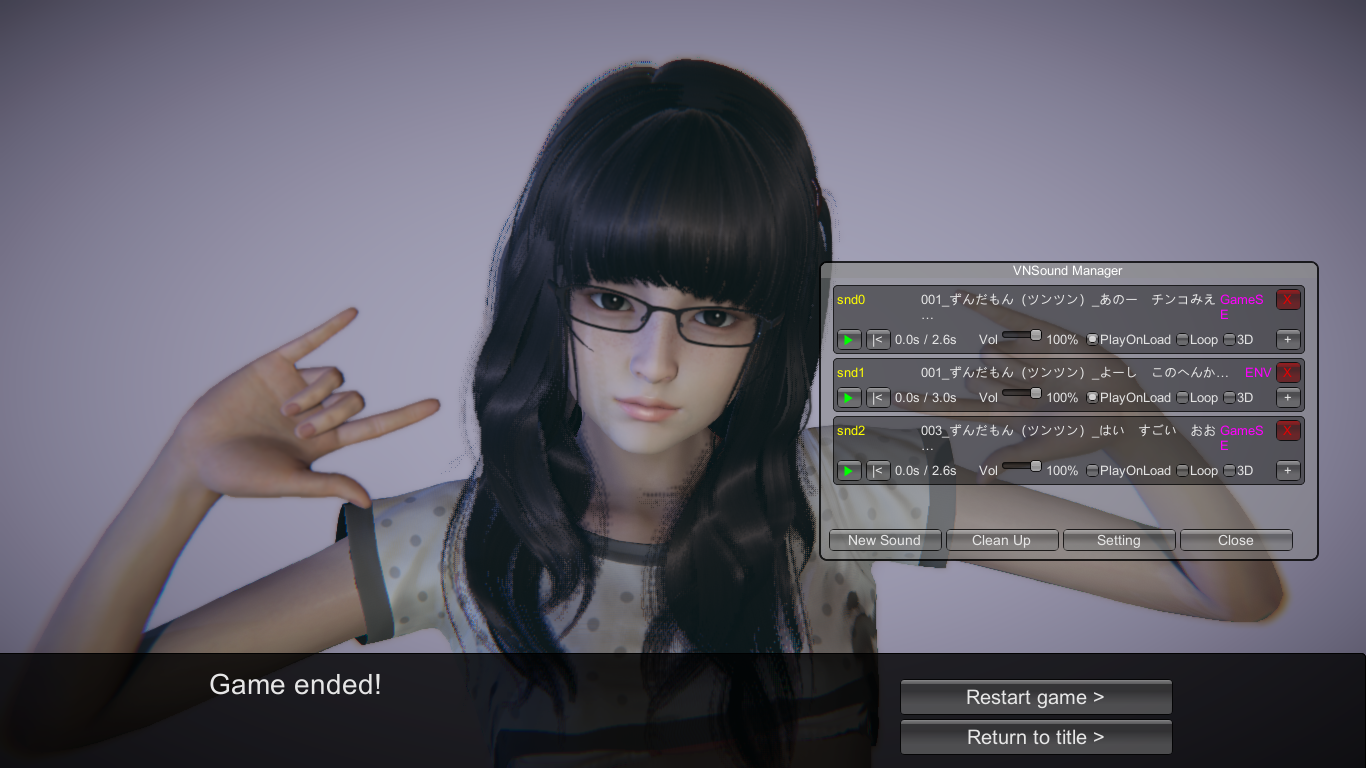
音声読み上げソフト等でで作った wav ファイルを スタジオで左端のボリュームマークのアイコンの VNSound Managerをクリックしてwav ファイルを指定します
SSSを開き のAdvancedをクリック VN add Fake Lip Sync Ext ONにします 音声ファイルの秒数と口パクがあうように In timeも同じ秒数にあわせます 4秒の場合 speedを4ぐらいに調整します
Who Say に Tracking したキャラのIDを入れます
Who Say act0
what say セリフ文字
more をクリックして Wizard Start adding a VNss commandをクリック
VNSound EXtをクリック
VNSound Manager で音声ファイルの IDを入力 snd0
OKをクリック
したの Save///をクリック
Load Saveクリック Export をクリック
追加
VNGE 37 clip manegerでアニメーション作成方法
ポーズからアニーメーション
ポーズとポーズのあいだを補完してアニメーションをつくる
方法
ワークスペースから アニメーキャラから用途にあった適当なポーズを選びます
バニラのポーズやアニメーションはIK FKがOFFの状態でしか動きませんので
キネマーIK & FK で 読み込まれているポーズをアニメ位置参照をクリックしてから 機能 FK IKを緑 有効にします
clip manegerをたちあげ Create 動きがわかる適当な名前をつけます
キャラが選択状態でAddをクリック Registerでキーフレームをうちます
デフォルトでが300フレーム10秒ですが好きなフレーム数にもできます
0フレームに最初のポーズを FK IKが有効状態で Hairのみチェックをはずして
Registerをクリック 中間の150フレームあたりに ちがうポーズをいれます
エンドフレーム300に同じポーズをいれるとアニメーションがループできます
0は一回のみ -1でループ
キネマーIK & FK で 読み込まれているポーズをアニメ位置参照をクリックしてから 機能 FK IKを緑 有効にしRegisterをクリック これでポーズとポーズのあいだでののアニメーションができます
おかしいところは操作軸でIKFKポイントを表示させHS2PE で調整します
できたら 必ずExport/Resetをクリック To Sceneをクリック 保存します
アニメーションを再度編集する場合は Modifyをクリックします
追加 これは便利
★スタジオのデフォルトのH体位アニメ一発設定 方法
ワークスペースにフォルダをクリック作り 名前をキャラ etcとつけます
女キャラ 男キャラを 基本ポーズそのまま読み込む
フォルダを選択状態で Ctrlキーを押しながらキャラを選択 ペアレントをクリック フォルダの中にいれます
女キャラ 男キャラを Ctrlキーを押しながら 2個選択状態にして
アニメー体位ー内容 を選びクリック 位置調整なしにそのまま Hシーンが完成 一発体位を かえれます
追加
VNGE の使い方 初心者用
VNGE
https://mega.nz/folder/oiB2wAQK#ojGIzlAN-1B-263uUDEalQ/folder/Jm5xAIbA
操作キー
Ctrl+F3 停止 初期画面
Ctrl+F8 起動
+ ー シーンの切り替え
F8 ゲーム起動
Ctrl+F3はVNGEをこの状態に戻すショートカットです
ゲーム起動 F8 のみ
メイン機能
:クリックで文字送りをすることのできるメッセージウインドウの作成。
:カメラや状態を記憶するカット保存機能
:指定のカットへの分岐ができる選択肢の作成
:複数のシーンを関連付けた連続再生
:文字と同時に口元を動かす疑似リップシンク機能
使い方
SSSでシーンを作る キャラクターアニメーション動作は clip manegerを使う
SSSではキャラの配置位置カメラワークをシーンで作る
clip maneger は キャラクターの動きアニメーションをトラッキングにより作成する。
VNGEのclip manegerでMMDのようにトラッキングアニメーションを作ることがでる
活用利用方法
SSSでのトラッキングはワークスペースではなく SSSのTRACKING の 表示 非表示 V
で操作すること
SSSを完全消去するには ワークスペース内にある VNGE関係のファイルを削除しなければいいけない
VNGEをCtrl+F3で初期化して削除して SN2を再起動しなければいけない
Hシーン あらゆる体位をまずsssシーンにつくる
会話とオナニーとSEXをシーンごとわける
マップの背景の空はkky skybox あたりを使う 検索で kky skybox
*STudioNeoのカメラシーンから普通にカメラアニメーションさせる方法
SSSでキャラクター等を ワークスペースで選択 Tracking 登録する
SSSでのトラッキングはワークスペースではなく SSSのTRACKING の 表示 非表示 V
で操作すること
SSSを完全消去するには ワークスペース内にある VNGE関係のファイルを削除しなければいいけない
VNGEをCtrl+F3で初期化して削除して SN2を再起動しなければいけない
まず1-10まであるシーンをsss Edit で シーンをいれる
したのUse Cam in Visual Novel の more をクリック開き
Advanced…にチェックして
in time シーンの時間 チェックあり
Animate Camera カメラ移動アニメーションを使うときチェック アニメーションが追加される
Hide Ui チェックなしでよい
Movie to next Start・・・ これにチェックで シーンからシーンを連続再生できる
* VNGE 37 SSSで音声ファイルとリップシンクさせる方法
音声読み上げソフト等でで作った wav ファイルを スタジオで左端のボリュームマークのアイコンの VNSound Managerをクリックしてwav ファイルを指定します
SSSを開き のAdvancedをクリック VN add Fake Lip Sync Ext ONにします 口パクがあうように speedを4ぐらいに調整します 基本的に音声ファイルの再生秒数とin timeの秒数を同じにすると口パクがあいます
Who Say に Tracking したキャラのIDを入れます
Who Say act0
what say セリフ文字
more をクリックして Wizard Start adding a VNss commandをクリック
VNSound EXtをクリック
VNSound Manager で音声ファイルの IDを入力 snd0
OKをクリック
したの Save///をクリック
Load Saveクリック Export をクリック
*MMDDを一緒に使いアニメーションをつくる方法
シーンの中にMMDDを起動させてLOAD start stop Clear のコマンドをいれてつかちゃいますわよ
SSSのEDIT画面 から したのUse Cam in Visual Novel の more をクリック開き
VNss commandをクリック MMDD extをクリック MMDD の起動 読み込み スタート クリア
MMdd load-mmdd start- mmdd stop-mmdd clear これを 順番にクリック 登録する
MMDDの動作が優先されるので編集のときは停止ではなくMMDDを SavewithoutQuite させて終了させること でないとシーン画面がおかしくなるわよ
*クリップマネージャーでアニメーションを複数つくり ノベル コマンドで作る方法
clip maneger で作ったアニメーションをを clip playで シーンに設定
VNss commandをクリック シーンごとにPLAYにチェックで stop で止まる
音声 喘ぎ声
add-アイテムー3DS2 -DX カメラアングル 位置で音声の左右 音量が変わります
選んだ音声がワークスペース内にできるので チェックをはずせば 無音にできます
リアルなシーン
system-キャラライト
強さ 1.00
ライト縦 1.89
ライト横 1.89
DHH 設定 p GraphicSettingREAl8.dhs or 7 を選択
VNGE MMDD用 撮影Dance用 テンプレートつくりました
使い方
VNGE 36.6 とMMDD 2.3.1 がひつようです。
MMDDで好きなVMDファイルをよみこむだけ
MMDDは SSSに ロードスタートクリアコマンドいれてます
*注意 :シーンが全部終わらないと MMDDの停止だけでシーンの初期化ができないのでキャラクターとカメラの調整ができないので(MMDDの読み込み 設定は省略いたします)
MMDDを必ずQuite終了させてください。
そしてCtir F3 で停止 F8で起動 スタート
先にMMDDでVMDファイルを読み込んでればOKです
VNGE MMDD用 撮影Dance用 テンプレート
https://www.mediafire.com/file/8oz7yb4xmrhxq4o/kannaMMDD.zip/file
https://onl.la/tzRuWuv
How to use
It seems that VNGE 36.6 and MMDD 2.3.1 are available.
Just read your favorite VMD file with MMDD
MMDD has a load start clear command in SSS
* Caution: If the scene is not completely finished, the character and camera cannot be adjusted because the scene cannot be initialized just by stopping the MMDD (the MMDD loading setting is omitted).
Be sure to exit MMDD with Quite.
Then stop with Ctir F3 and start with F8.
It is OK if you read the VMD file with MMDD first
https://onl.la/tzRuWuv
VNGE + TIME LINE で最強アニメーション
カメラの1シーンごとに timeLIneで別々のアニメーションを作るので VNGEで キャラを先にトラッキング登録しとく
TIME LINEのアニメーションは IK とFK なので簡単です
imeline (Ctrl + T 起動)でanimation化します
timeline使い方
アニメーションは timelineでつくります
起動ショートカットキー Ctrl+ T で作ります vnge のクリップマネージャはバグがあるのでシーンでは使いません
IKアニメーション 手足の動き
アニメションにするキャラをワークスペース内で選択した状態で
真ん中の項目のAanimationTimeの1個したにSelcted Guide Objyect posといゆうのがあるので
赤い線のところをマウスのミドルでクリック
赤い点が↑にでるのでそこでフレームキーをうってトラッキングアニメーションをつくります
FK アニメーション 頭 首 手首足の回転等
真ん中の項目のAanimationTimeの2個したのSelcted Guide Objyect Rotを 動かしたいキャラの部位を
選択しといてSelcted Guide Objyect Rotの0最初をミドルクリック すると 上に ポイントが表示されるので フレーム数を変え操作軸で動かしキーをミドルクリックしてフレームキーをうってトラッキングアニメーションをつくります
VNGEでキャラとアイテムをあらかじめトラッキング登録してから1シーンごとにアニメーションも保存できるので多彩なanimationシーンがつくれます。timelineでつくったアニメーションはSAVEしないと消えますので
必ずtimeline上でsaveします
* 音声ファイルとリップシンクさせる方法
音声読み上げソフト等でで作った wav ファイルを スタジオで左端のボリュームマークのアイコンの VNSound Managerをクリックしてwav ファイルを指定します
SSSを開き のAdvancedをクリック VN add Fake Lip Sync Ext ONにします 口パクがあうように speedを4ぐらいに調整します
Who Say に Tracking したキャラのIDを入れます
Who Say act0
what say セリフ文字
more をクリックして Wizard Start adding a VNss commandをクリック
VNSound EXtをクリック
VNSound Manager で音声ファイルの IDを入力 snd0
OKをクリック
したの Save///をクリック
Load Saveクリック Export をクリック
ワークスペースのカメラの使い方
ワークスペースのアイコンのカメラをクリック追加
カメラを選択して anime を選ぶとカメラ設定がでるので動作にチェックをいれる
複数の撮影用のカメラが追加できる time line(Ctrl + T )でカメラワークがつくれる。
シーンのPCやTvに mp4の動画で 仮想PCやTV画面を作る
MODの mp4Plane をつかいます
ショートカットキーは M
How to make a studio animation for beginners for memos (^^ ♪
There are three
1
Use the studio’s Deforte anime
Merit: Easy to do, just alignment
Disadvantages: Only the same movement can be done
If you fix the pose with IK FK, it hardly moves. The movement becomes unnatural.
2
Use a gimmick
Merit: You can create a beautiful animation with a loop of movement.
3
Use timeline VNGE Clip maneger + Nodes Constraints + gimmicick
The disadvantage of this is that the difficulty level is high, but you can make a full-scale original animation.
How to do First, select the basic pose and animation from the vanilla pose and animation.
First of all, the character’s IK or FK must be valid.
After loading the studio pose or animation, press the animation position reference from anime –Kinema.
After that, enable IK (green).
Click the folder in the workspace and give it an appropriate name from anime
This time I will use it for the buttocks, so I will use IK HIP.
Use ctrl + N Nodes Constraints to make the folder the parent. Set the folder from the Advance list as Set as pearent.
Next, select a character and select IK-f_t_hips (work) to make it a Set as child child.
Align the red and green circles and click Use curent
Check on the above Link position Link rotation Add New
With this, HIP can move with IK operation in the folder IK HIP.
You can also animate this with a gimmick loop
First, use piston gimmick with piston in find search.
Just parent the piston gimmick to her folder IK HIP
Select the folder IK hip, hold down ctrl, click piston gimmck, and click pearent in the workspace.
The merit is that if you increase IK RIG, you can freely change the pose with the quality of vanilla’s default animation.
With this, IK HIP moves according to the movement of the piston and her character’s hips move.
piston gimmck is hidden by the anime-option
How to lip-sync with audio files in VNGE 37 SSS
Specify the wav file by clicking her VNSound Manager on the leftmost volume mark icon in her studio
Open SSS, click Advanced, VN add Fake Lip Sync Ext, turn ON, adjust to the number of seconds in In time so that the lip sync matches, if it’s 4 seconds, adjust the speed to about 4
Enter the ID of the character you tracked in Who Say
Who Say act0
what say serif characters
Click more and click Wizard Start adding a VNss command
Click VNSound EXt
Enter the sound file ID in VNSound Manager snd0
Click OK
Click Save///
Click Load Save Click Export
addition
How to create animation with VNGE 37 clip manager
animation from pose
Complementing between poses to create animation
Method
From the workspace, select an appropriate pose that suits your purpose from the anime characters
Vanilla poses and animations only work when IK FK is OFF
Click the anime position reference for the loaded pose in Kinemar IK & FK, then enable the function FK IK green
Start up the clip manager Create and give it an appropriate name that shows the movement
With the character selected, click Add. Set a keyframe with Register.
The default is 300 frames 10 seconds, but you can set it to any number of frames you like.
First pose at 0 frame FK IK enabled Uncheck only Hair
Click Register He puts in a different pose about 150 frames in the middle
Animation can be looped by putting the same pose in end frame 300
0 only once Loop with -1
In Kinema IK & FK, click on the animation position reference that has been loaded, then enable the function FK IK in green and click on Register, so you can animate between poses
Display the IKFK point with the operation axis and adjust it with HS2PE
If possible, be sure to click Export/Reset Click To Scene to save
Click Modify to edit the animation again
Add this is convenient
★ How to set the studio’s default H-position animation in one shot
Click to create a folder in the workspace and name it character etc.
Import the female character and the male character as they are in the basic pose
With the folder selected, select the character while holding down the Ctrl key, click the parent, and put it in the folder
While pressing the Ctrl key on the female character and the male character, she selects two
Anime position – Select the content and click to complete the H scene as it is without adjusting the position She can change the position in one shot
addition
How to use VNGE for beginners
VNGE
https://mega.nz/folder/oiB2wAQK#ojGIzlAN-1B-263uUDEalQ/folder/Jm5xAIbA
control key
Ctrl+F3 stop initial screen
Ctrl+F8 Boot
+ – – Scene switching
F8 Game launch
Ctrl+F3 is a shortcut to return VNGE to this state
Game start F8 only
main function
: Creation of a message window that can be forwarded by clicking.
: Cut save function that memorizes the camera and state
: Create an option that can branch to a specified cut
: Continuous playback with multiple scenes associated
: Pseudo lip sync function that moves the mouth at the same time as the letters
Usage
Create scenes with SSS Use clip manager for character animation actions
In SSS, create the character placement position camera work in the scene
A clip manager creates movement animations for his character by tracking.
You can create tracking animation like MMD with VNGE’s clip manager
How to use
Tracking in SSS is not a workspace, but TRACKING in SSS is displayed or hidden V
be operated with
To completely erase SSS, you have to delete his VNGE related files in his workspace
VNGE must be initialized with Ctrl+F3, deleted, and SN2 must be restarted
H scene All positions are first created in sss scene
Separate conversation, masturbation and SEX scenes
Use kky skybox for map background sky Search kky skybox
* How to make normal camera animation from the camera scene of STudioNeo
Select and register characters etc. in his workspace with SSS
Tracking in SSS is not a workspace, but TRACKING in SSS is displayed or hidden V
be operated with
To completely erase SSS, you must delete the VNGE-related files in your workspace
VNGE must be initialized with Ctrl+F3, deleted, and SN2 must be restarted
First of all, he puts scenes from 1 to 10 with sss Edit
Click more on Use Cam in Visual Novel and open
Check Advanced…
in time scene time checked
Animate Camera Check animation is added when using camera movement animation
Hide Ui Unchecked
Movie to next Start… By checking this, you can continuously play scenes from scene to scene
* How to lip-sync with audio files in VNGE 37 SSS
Specify the wav file by clicking his VNSound Manager on the leftmost volume mark icon in his studio
Open SSS, click Advanced, turn on VN add Fake Lip Sync Ext, adjust speed to about 4 to match the lip sync
Enter the ID of the character you tracked in Who Say
Who Say act0
what say serif characters
Click more and click Wizard Start adding a VNss command
Click VNSound EXt
Enter her ID for the sound file in VNSound Manager snd0
Click OK
Click Save///
Click Load Save Click Export
* How to create animation using MMDD together
Start MMDD in the scene and use the LOAD start stop Clear command.
Click more on Use Cam in Visual Novel from the SSS EDIT screen to open
Click VNss command Click MMDD ext Start MMDDRead Start Clear
MMdd load-mmdd start- mmdd stop-mmdd clear Click these in order to register
The operation of MMDD takes precedence, so when editing, don’t stop MMDD and SavewithoutQuite to end it otherwise the scene screen will get messed up
* How to create multiple animations with Clip Manager using novel commands
He set the animation made with clip manager to the scene with clip play
Click VNss command Check PLAY for each scene Stop with stop
Voice Pant voice
add-item-3DS2-DX camera angle left and right sound volume changes
The selected voice will be created in the workspace, so he can turn it off by unchecking it.
realistic scene
system-chara light
Strength 1.00
Light vertical 1.89
Light side 1.89
Select DHH setting p GraphicSettingREAl8.dhs or 7
I made a template for shooting Dance for VNGE MMDD
Usage
VNGE 36.6 and MMDD 2.3.1 are required.
Just read your favorite VMD file with MMDD
MMDD has a load start clear command in SSS
*Note: Unless the scene is completely finished, the scene cannot be initialized just by stopping MMDD, so the character and camera cannot be adjusted (reading MMDD settings will be omitted)
Be sure to quit MMDD Quite.
Then stop with Ctir F3 Start with F8 Start
It is OK if you read the VMD file with MMDD first
エモーションボタン
一言感想ボタン
+ボタンをクリックすることで追加することができます
×ボタンをクリックすると削除確認メッセージが表示されます
虫眼鏡マークをクリックすると同じボタンをつけられた記事の一覧が表示されます
※ボタンを押した回数はキャッシュされるため、表示が反映されるのは編集などでクリアされるか、30分ごとです


HSPEでIKのXYZをいじれるの知りませんでした!!!
UIにこんなでっかく書かれてるのに・・・w
これ使えばclipmanagerのクオリティが格段に上がりそうです!!!
ありがとうございます!
初心者なので むずかしいことはあまりわかりませんが裏技てきなののも 今度 いっぱいはっけんしたら のせます(^^♪